How to Save and Reuse ChatGPT Prompts (Without an Extension)

Last week you wrote a prompt that finally worked. The output was exactly right, you got on with your day. Today you need it again, and you're scrolling through forty conversations trying to remember which one it was in.
I built Prompt Organiser because that was my Tuesday, every Tuesday. ChatGPT is brilliant at producing answers and oddly bad at handing them back to you later. Here's every practical way to save and reuse your prompts, and which one actually survives contact with fifty of them.
Does ChatGPT have a saved prompts feature?
No. There is no built-in prompt library, no named, editable list of prompts you can open and fire again.
Two features come close enough to be worth knowing:
- Custom GPTs bake instructions into a bot. Great for a persona you use constantly, heavy-handed for a prompt you need twice a month.
- Projects group conversations and can carry shared instructions, but they organise chats, not prompts.
Neither gives you the thing a library gives you: your own prompts, named, searchable and editable.
Where can you save ChatGPT prompts?
Sorted by friction, least effort first:
- Chat history — zero setup. Works until roughly prompt ten, when scrolling costs more than rewriting from memory.
- A note or a
prompts.txt— searchable and free, messy within a week. No categories, and every placeholder gets overwritten by hand. - A browser extension — genuinely useful at a desk. Tied to one browser, usually one AI, and gone the moment you pick up your phone.
- A dedicated prompt app — built for the job: names, categories, fillable variables, version history.
Where your library physically lives matters too, especially once prompts contain client names or unreleased ideas. More on that in the best way to store prompts.
How do you turn a one-off prompt into a reusable one?
Take something you wrote once:
Write a friendly follow-up email to Sarah at Nordwind. We met at the trade show on Tuesday and she asked for pricing on the mid-tier plan. Keep it under 150 words.
That worked exactly once. Now mark the parts that change:
Write a
{{Tone}}follow-up email to{{Recipient}}. Context:{{...What happened and what they asked for}}. Keep it under{{#Word limit}}words.
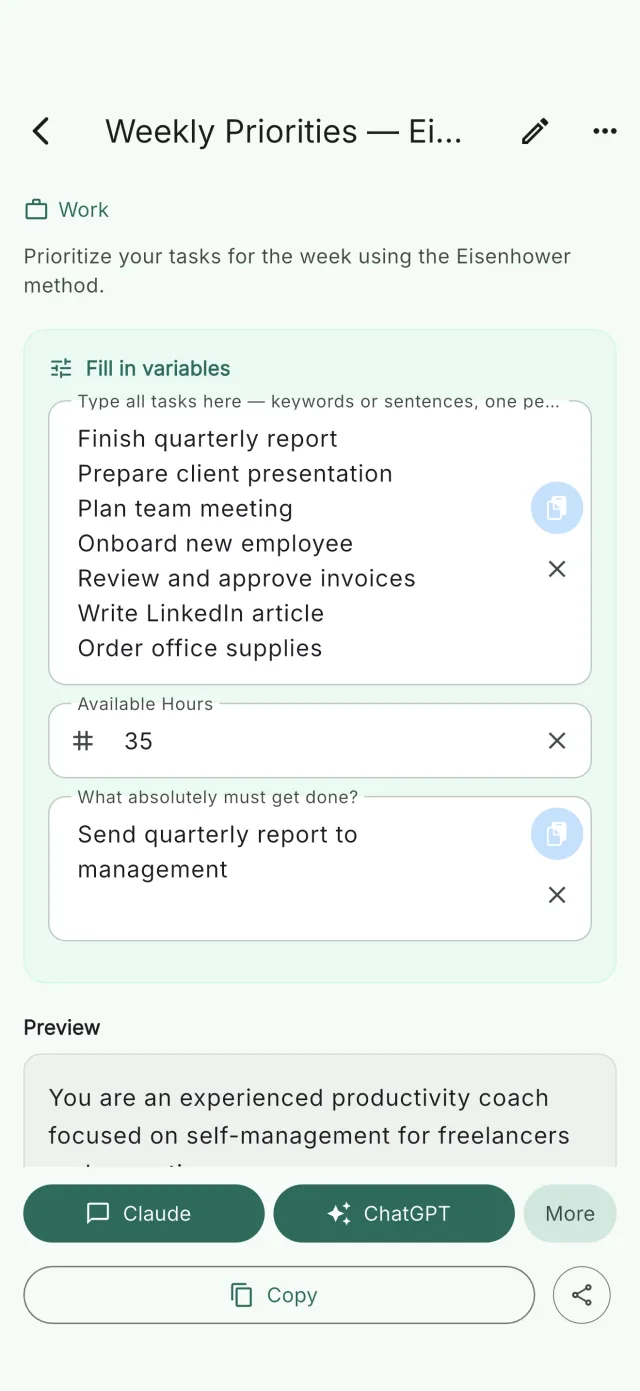
Same prompt, every follow-up you will ever send. Instead of retyping, you fill in four fields.
The five variable types (free text, multiline, number, dropdown and multi-select) each solve a different problem; the guide to prompt templates with variables shows when to reach for which.
How do you keep your favourites one tap away?
Look at what you genuinely reuse and the same pattern shows up for almost everyone: five prompts carry most of the work. A summariser, a rewriter, an explainer, a code reviewer, an email drafter.
Give those five a home you can reach without searching: a favourites category, or the top of the list. Everything else can live in broader buckets: Work, Writing, Code, Research.
A flat list still holds up at fifty prompts because you rarely browse for a prompt. You search for one. Full-text search across titles and prompt bodies finds "the one with the tone dropdown" in two keystrokes, no matter which folder it would have been filed under. Categories then only have to carry the times you genuinely browse. That combination is what makes deep nesting redundant. More on naming and categories in how to organize AI prompts.
What about on your phone?
Nearly every guide on this topic assumes you're sitting at a desktop with a browser extension installed.
A lot of AI use doesn't happen there. It happens while you're waiting somewhere, between two meetings, on the sofa. And that's exactly where copy-paste is worst: switch app, find the prompt, select, copy, switch back, paste, then fix the placeholders on a touch keyboard.
A native app removes the whole detour: the prompt sits on the device, the variables become a form, and one tap hands the finished text over, already filled in. Where it lands depends on the platform: on an iPhone the AI's own app opens if you have it installed, otherwise a browser tab with the prompt already sitting in the input field; on a Mac it's always the web version. Either way there's no extension to install and nothing for you to copy or paste. The app puts the prompt on the clipboard anyway, purely as a safety net.
Your save-and-reuse workflow in five steps
- Collect the ten prompts you actually reuse, from chat history, notes, wherever they ended up.
- Name each one by its job: "Follow-up email, warm lead" beats "You are an experienced sales…".
- Templatise the top three: replace the specifics with variables.
- Favourite the handful you touch daily.
- Send from wherever you are, without retyping anything.
Fifteen minutes once, and the "where was that prompt again?" scroll is over.
Questions people ask
Can I export my saved prompts? In a dedicated app, yes. Prompt Organiser exports your whole library as a single JSON file: back it up, move it to a new device, or hand it to a colleague. Chat history offers no equivalent.
Do saved prompts work with Claude and Perplexity too? They do. A good prompt works anywhere, which is the strongest argument for keeping your library outside any single tool.
What's the best way to save prompts on an iPhone? A native app rather than a browser extension. Extensions don't help you in mobile Safari, and the clipboard route is the slowest part of the whole workflow.
How many prompts before this is worth setting up? Around ten. Below that, chat history is genuinely fine. Above that, finding costs more than the setup ever will.
If you'd rather not build the system yourself: Prompt Organiser keeps your prompts on your iPhone, iPad, Mac or Android phone, turns variables into a form you fill in seconds, and sends the finished prompt to ChatGPT, Claude or Perplexity in one tap. Everything stays on your device. The first 10 prompts are free, on the App Store and Google Play.